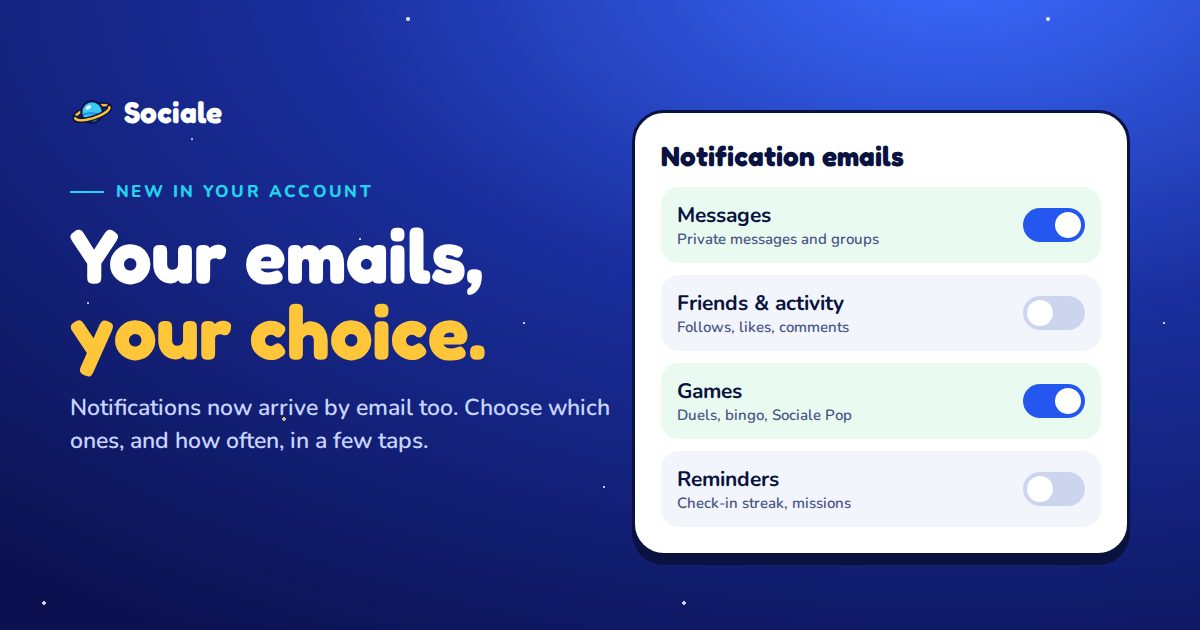
New on Sociale: your notifications now arrive by email too. A new private message, a friend who follows you, a gift, an Arena challenge, an event about to start: if you are not on the site, we send you an email so you don't miss it.
You decide everything. You can choose which emails you get, how often, or turn them off completely. It takes a few seconds, and in this guide we show you how, step by step.
Don't want all these emails? Open your account settings and switch off what you don't need. Here is how.
What changes
- Emails are grouped. We don't send one email for every like: the notifications you didn't see are put together in one email.
- Only when you are away. If you are on the site, you see the notification in the bell and no email is sent.
- Never the text of your messages. For private messages the email only says who wrote to you. To read the message you open Sociale.
- Muted chats stay silent. If you muted a chat, it doesn't send emails either.
Step 1: open your email settings
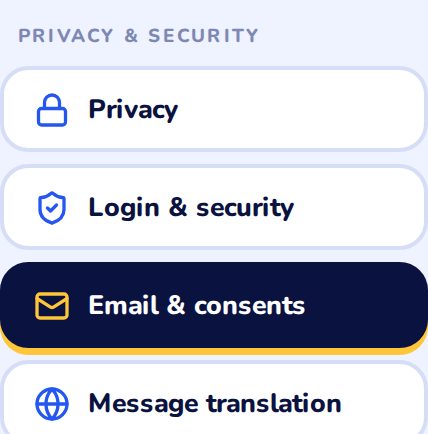
On a computer: click your name at the top, open My account and choose Email & consents in the menu on the left, under Privacy & security.
On your phone or in the app: open Settings, then Notifications, and scroll down to the Email section.
The quickest way, from any device: open mysociale.net/me/settings/notifications.
Step 2: the Notification emails panel
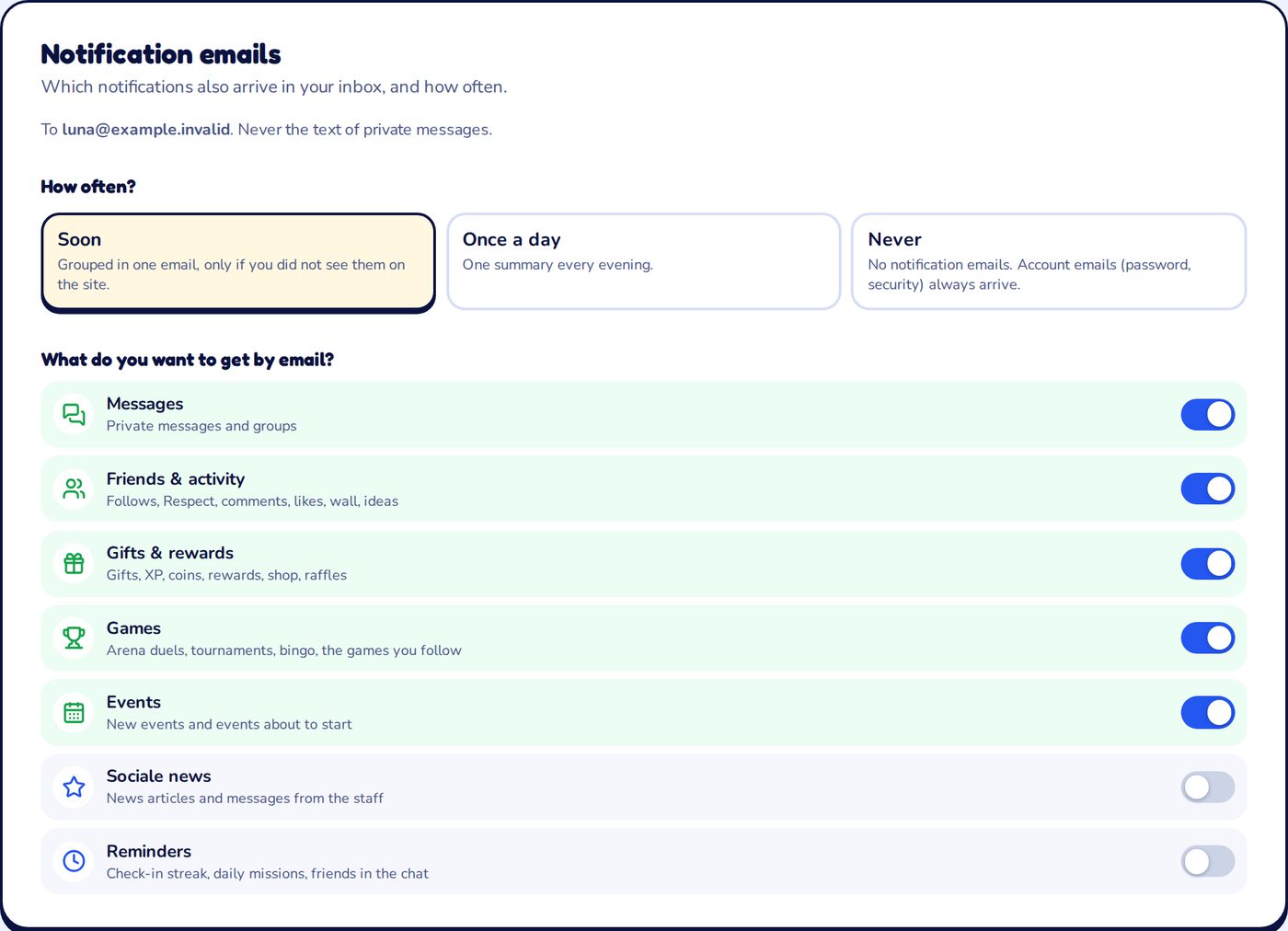
Here you find everything in one place: the address we write to, how often you get emails, and what you want to get.
How often?
| Choice | What happens |
|---|---|
| Soon | One grouped email a few minutes later, only if you didn't see the notifications on the site. At most one email every 30 minutes. |
| Once a day | One summary every evening with everything you missed. |
| Never | No notification emails at all. |
Just tap a choice: it is saved right away, and you see Saved for a moment.
What do you want to get by email?
Every category has its own switch. Blue means on, grey means off.
- Messages: private messages and groups.
- Friends & activity: follows, Respect, comments, likes, your wall, ideas.
- Gifts & rewards: gifts, XP, coins, rewards, shop, raffles.
- Games: Arena duels, tournaments, bingo, Sociale Pop challenges, the games you follow.
- Events: new events and events about to start.
- Sociale news: news articles and messages from the staff. Off unless you turn it on.
- Reminders: check-in streak, daily missions, friends in the chat. Off unless you turn it on.
Step 3: turn off what you don't want
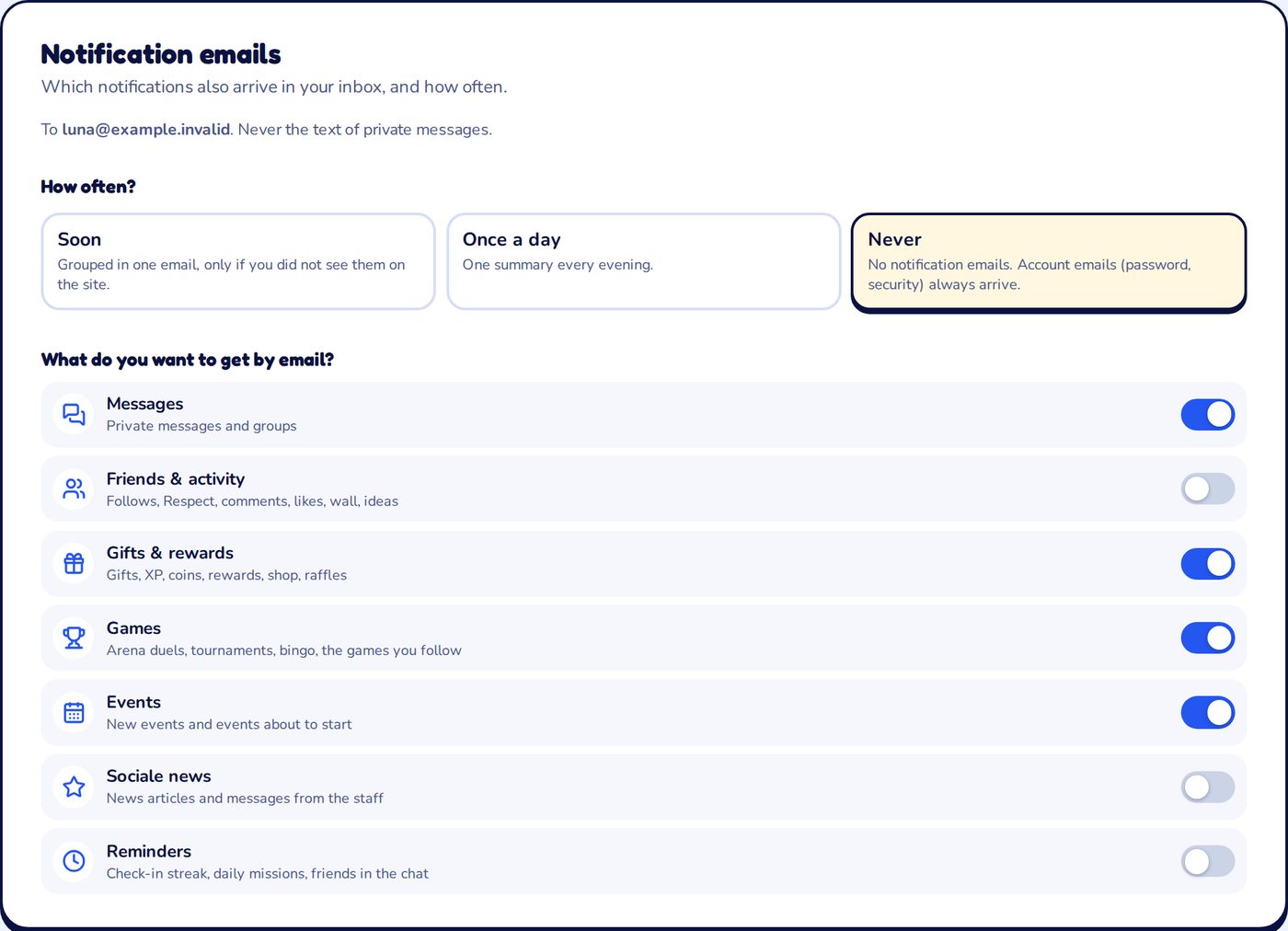
Example: you want emails for your messages and games, but not for every like and follow. Switch off Friends & activity and you are done.
Want no notification emails at all? Choose Never. Your switches stay as they are, so if you change your mind you just tap Soon again.
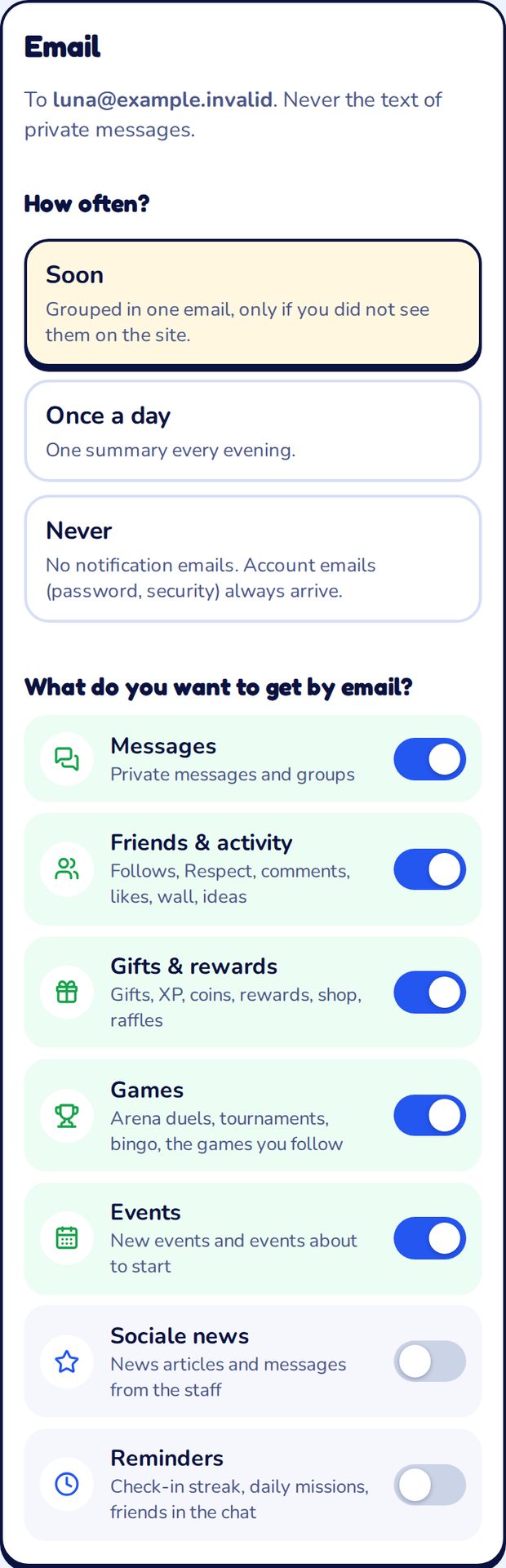
On your phone
The same choices, in Settings → Notifications → Email. On a phone the three choices are one under the other.
What the email looks like
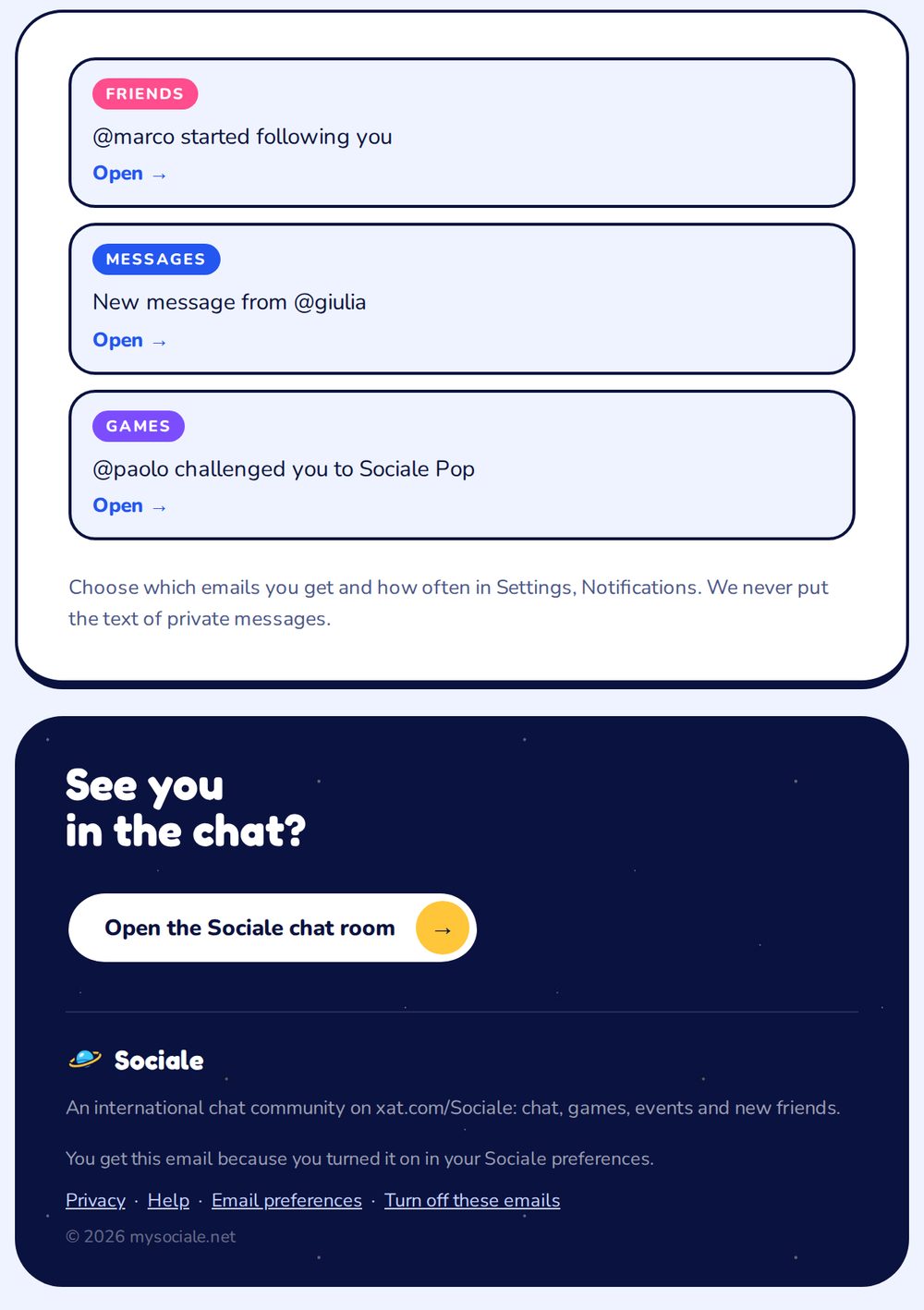
Each notification comes with a coloured label (Friends, Messages, Games…) and an Open link that takes you straight to it.
At the bottom of every email you always find two links:
- Email preferences: opens your settings, to change categories and frequency.
- Turn off these emails: stops all notification emails with one click, without logging in.
Turn everything off from the email
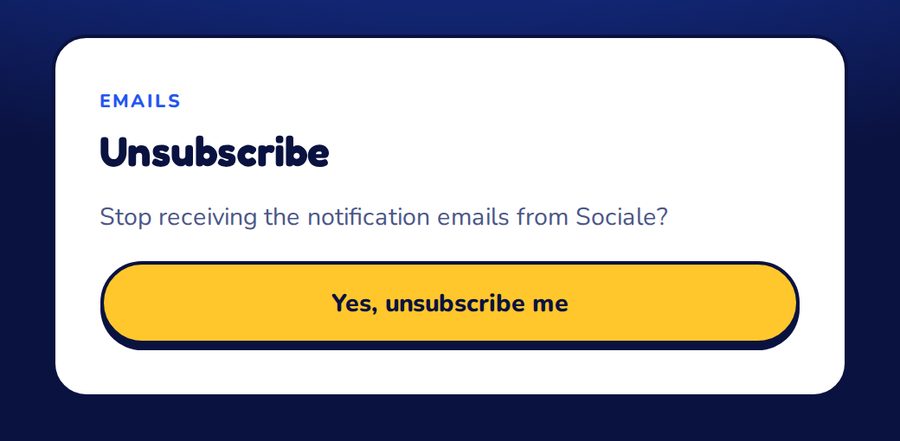
Tap Turn off these emails at the bottom of any notification email. A page asks you to confirm: tap Yes, unsubscribe me and you're done. Your mail app may also show its own Unsubscribe button next to the sender: it works the same way.
Changed your mind? Go back to your settings and choose Soon or Once a day.
The newsletter is separate
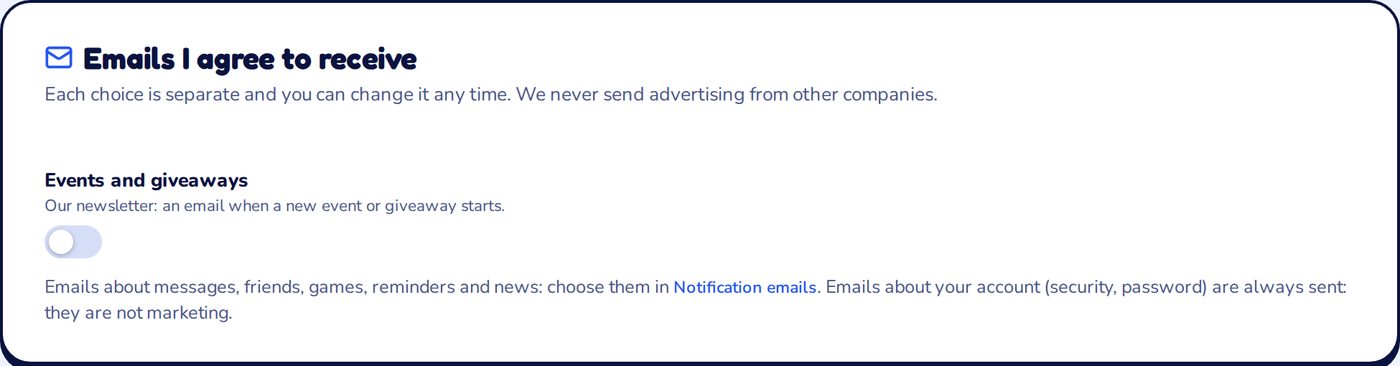
The newsletter (new events and giveaways) has its own switch, Events and giveaways, in the same Email & consents page. It is off unless you turned it on yourself.
Emails that always arrive
Some emails are about the safety of your account, so they can't be turned off:
- the link to create a new password, when you ask for it;
- the warning that your password or your email was changed;
- the link to confirm your email address.
They are not advertising: they protect your account. If you get one and it wasn't you, change your password right away and write to us from Help & support.
Confirm your email
To get your emails, and to get your account back if you forget the password, your address must be correct. In Settings → Login & security you see if your email is confirmed. If it isn't, tap Send the link again and open the link we send you.
For the staff
Staff members also find a Staff alerts section with their own switches: Staff to-dos, Chat moderation (bans, kicks, gags and auto-delete in the room), Stickers to review and Staff group chats. Staff alerts arrive in a separate, faster email, and also in the staff group and in the bell.
Questions? Write to us from Help & support or ask in the Sociale chat. See you there!