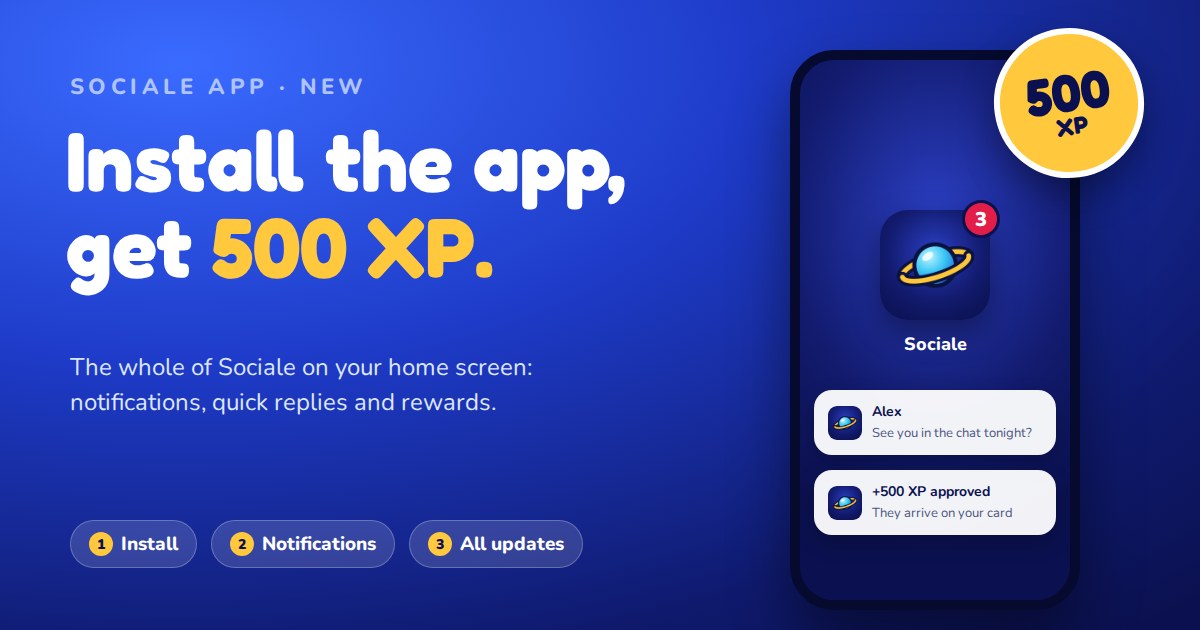
Sociale is now an app for your phone and your computer. It is the whole site — chat, messages, feed, games, events, your Sociale Card — on your home screen, full screen, with notifications. And to welcome you, we give 500 XP to everyone who installs it and sets it up.
Here is exactly what you get and what you need to do.
What you get
500 XP for the xat chat
Install the app, turn on notifications and allow all updates: you get 500 XP for the Sociale chat on xat. One time per member.
- The staff checks every request quickly, then the XP start arriving on your Sociale Card.
- They arrive a little at a time (parts of 30 XP), within the daily XP limit of the chat, so 500 XP can take a few days to arrive in full.
- You can follow them on your card page: under How your XP are split you see the Arriving part, and every time a part reaches your xat account it becomes Available by itself.
- No Sociale Card yet? No problem: your XP wait for you and arrive as soon as your card is active.
More rewards with the app
| What | Reward |
|---|---|
| Install and set up the app | 500 XP |
| A friend installs the app with your link and completes the steps | 100 XP for every friend |
| Open the app 7 days in a row | 50 coins (every 7 days) |
| A badge on your public profile | App badge |
The rewards for friends are checked by the staff too, like the 500 XP.
Notifications that really help
The app tells you what matters, even when it is closed:
- Private messages and groups, with Reply and Mark as read right in the notification (Android and computers).
- Gifts, XP and coins you receive, rewards approved, shop deliveries.
- Arena challenges with an Accept button, tournaments and duels.
- New events and events you follow that start soon, with an I'm going button.
- Friends in the chat now, your check-in streak about to end, the daily missions.
- News from Sociale and messages from the staff.
You decide what you receive: in Settings → Notifications you can switch every type on or off and choose quiet hours, so at night notifications arrive without sound.
An app that feels like an app
- Full screen, opens from its own icon, no browser bars.
- A number on the icon with your unread messages and notifications (iPhone and computers; on Android the phone shows a dot or a number, depending on the model).
- Shortcuts (Android and computers): press and hold the icon for Messages, Chat, Feed, My area and a one-tap Check-in.
- Share to Sociale (Android): share a photo or a link from any app and send it to a friend or post it on the feed.
- Works without internet: your last chats stay on the phone, and messages you write offline are sent by themselves when the connection is back.
- Always up to date: when we publish something new, the app updates by itself. You never need to uninstall it.
How to get your 500 XP: 3 steps
When you log in on mysociale.net, a window Get the Sociale app shows the three steps with a green tick next to each one you complete. You can also follow them below.
1. Install the app
Android (Chrome, Samsung Internet, Edge)
- Open mysociale.net and log in.
- Tap Install in the Get the Sociale app window, or open the browser menu (⋮) and choose Install app / Add to Home screen.
- Confirm: the Sociale icon appears on your home screen.
iPhone and iPad (Safari)
- Open mysociale.net in Safari and log in.
- Tap the Share button (the square with the arrow) at the bottom.
- Choose Add to Home Screen, then Add.
- Open Sociale from the new icon on your home screen and log in there. On iPhone the app keeps its own login, separate from Safari.
Computer (Chrome or Edge)
- Open mysociale.net and log in.
- Click Install in the window, or the install icon at the right of the address bar.
- Sociale opens in its own window and you find it among your programs.
2. Turn on notifications
- Open the app.
- In the Get the Sociale app window tap Turn on, then Allow when the phone asks.
- On iPhone this works only from the app opened from the home screen (it needs iOS 16.4 or newer).
If you blocked notifications by mistake, the window shows you how to allow them again on your device. You can always check them in Settings → Notifications.
3. Allow all updates
Tap Allow all in the window. It turns on:
- the newsletter of Sociale;
- reminders (events, check-in, missions);
- an email when you have unread messages (never the text of the messages);
- news of the site.
You can change each of them later in your account privacy settings. The XP you received stay yours.
And then?
Nothing else: when the three ticks are green, your request goes to the staff by itself. After the check you get a notification, and the XP start arriving on your card.
Invite your friends
After you complete the steps you see Invite friends to the app with your personal link. Share it: when a friend installs Sociale with your link and completes the three steps, you get 100 XP for every friend (after the staff check).
Questions
I don't see the Install button.
Use Chrome or Edge on Android and computers, and Safari on iPhone. In some browsers (for example Firefox) the app can't be installed: the window tells you what to do on your device.
I installed the app but the first step is not ticked.
Open Sociale from the app icon, not from the browser: the app tells the site it is installed when you open it.
Notifications don't arrive.
Check that they are on in Settings → Notifications and allowed in the phone settings for Sociale. On iPhone they work only from the app on the home screen.
My XP haven't arrived yet.
First the staff checks the request, then the XP arrive in parts of 30 within the daily XP limit of the chat. You see them under Arriving on your card page. If your Sociale Card is not active yet, request it: the XP wait for you.
Can I get the 500 XP more than once?
No: one time per member, even with more devices.
Can I uninstall the app?
Of course, whenever you want. Notifications on that device stop. The XP you already received stay yours.
See you in the app!