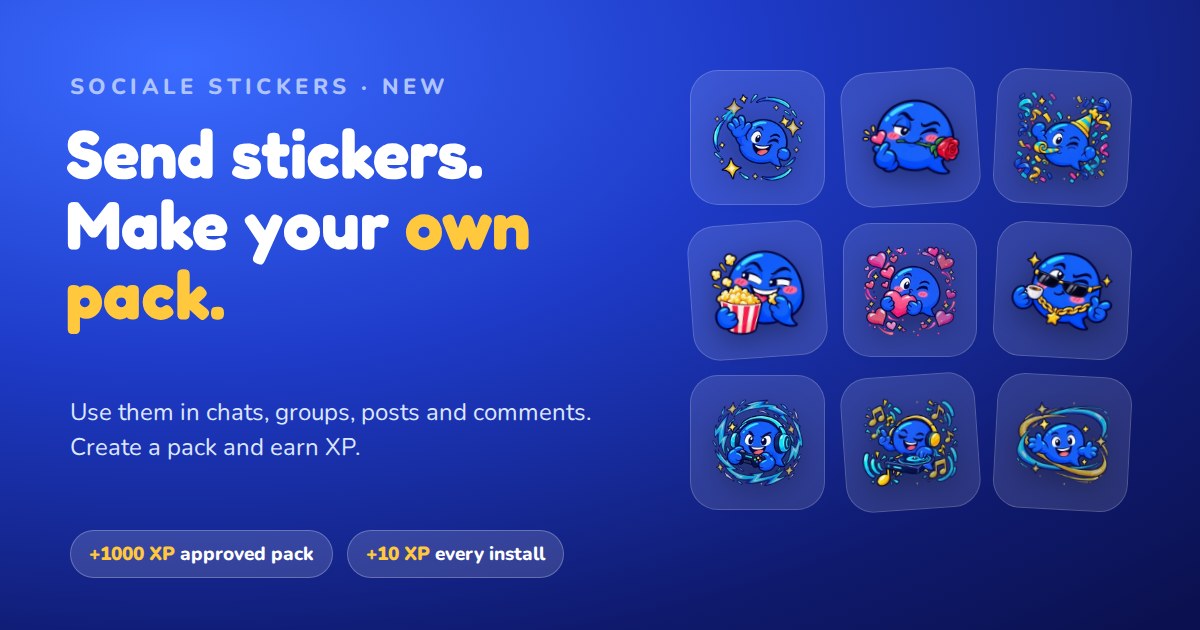
Sociale now has stickers: big, colourful, many of them animated, ready to send in private messages, groups, posts and comments. And from today you can create your own sticker pack: when the staff approves it you get 1000 XP, and every time a member installs it you get 10 XP more.
Here is everything you need to know: how to send stickers, how to install new packs and how to create yours, step by step.
The stickers you already have
Every member already has these packs, free:
- Animated: 10 animated stickers of our mascot — hello, welcome, party, coffee break, good night, love, gamer, music and more.
- Fun & Flirt: 6 stickers for fun moments — flirt, popcorn gossip, troll, facepalm, boss and more.
Some official packs are unlocked in other ways, for example in the Shop: their stickers show a small lock until you unlock them (on a computer, put your mouse on a sticker to see how).
How to send a sticker
In private messages and groups
- Open a chat in Messages or a group.
- Tap the sticker button next to the text box (the little square sticker icon).
- In the Stickers tab choose one: it is sent right away, big, as its own message.
In the same window, the GIF tab lets you search and send GIFs.
In posts and comments
- Write a post on the feed or a comment.
- Tap the Sociale emojis button (the sparkles icon) in the editor.
- Choose a sticker: it goes into your text, and you can write before and after it.
Animated stickers move by themselves in the chat. In the lists they stay still and move when you put your mouse on them, so the page stays light.
How to install new packs
Packs made by members are free to install. There are two ways:
From a chat, a post or a comment. Did a friend send a sticker you like? Tap it: a window shows the whole pack, who made it and how many people use it. Tap Install and it is yours.
From the stickers page. Open mysociale.net/stickers: under Sticker packs you find all the packs, sorted by Popular or New, and you can search by name or creator. Tap Install on the pack you like, or open it to see all its stickers first.
After you install a pack, you find it in the sticker button of the chats and in the Sociale emojis button of posts and comments.
To remove a pack, tap Installed on its page (the button goes back to Install), or go to My packs and tap Remove under Installed packs.
Create your own pack
Draw your own stickers — your pet, your friends' favourite phrases, your room's jokes, your style — and share them with the whole community.
What you get
| What | Reward |
|---|---|
| Your pack is approved by the staff | 1000 XP (once per pack) |
| A member installs your pack | 10 XP (once per member) |
| Installing packs of other members | Free |
The XP arrive on your Sociale Card a little at a time (parts of 30 XP), within the daily XP limit of the chat: you see them under Arriving on your card page. No active card yet? They wait for you. Every 10 installs you also get a notification with the count.
Step 1 — Create the pack
- Go to mysociale.net/stickers/mine (or tap Create a pack on the stickers page).
- Under New sticker pack write a name (for example My cat in the chat) and, if you like, a short description.
- Choose who can use it:
- For everyone: after the approval, everyone can install it, and you get +10 XP for every install.
- Only for me: after the approval, only you can use it. You get the 1000 XP too, but nobody else can install it.
- Tap Create the pack.
Step 2 — Add the stickers
A pack needs at least 10 and at most 30 stickers. You can add them in two ways.
One by one, or many together. Tap Add stickers and choose the images. On a computer you can select many images at once.
All together with a ZIP file. Do you have all your stickers ready in a folder? Put them in a ZIP and tap Upload a ZIP. Inside the ZIP put only the sticker images:
- PNG, WebP, GIF or JPG (animated GIF and WebP are fine);
- nothing else: no text files, videos, PDFs or documents — if there is something else inside, the ZIP is not accepted and we tell you which files to remove;
- the images can be inside one folder;
- up to the stickers still missing in your pack (30 in total), max 6 MB each, ZIP max 80 MB, no password;
- the stickers are added in the order of their file names (01.png, 02.png…) and the file name becomes the sticker name.
A bar shows the stickers being created. If an image cannot be used (for example it is too small), it is listed at the end with the reason, and the others are added anyway.
Tips for great stickers:
- square images, 512 × 512 pixels is best, at least 96 × 96;
- transparent background, so they look good in light and dark mode;
- readable also small: big shapes, short text;
- animated stickers: keep them short; we keep up to 40 frames and make them light for the chat.
You can rename every sticker (tap its name) and remove the ones you don't like with the small cross, until you send the pack.
Step 3 — Send it to the staff
- When you have at least 10 stickers, the bar becomes green.
- Tick the box that confirms the stickers are yours (you made them or you have the right to use them) and follow the guidelines.
- Tap Send for approval.
The staff checks the pack, usually within a day, and you get a notification with the answer.
- Approved: you get the 1000 XP and the pack appears in your stickers. If it is For everyone, it also appears on the stickers page, with its own link (mysociale.net/stickers/…) to share with your friends.
- Not approved: you see the reason. Change the stickers and send it again.
After the approval
An approved pack cannot be changed, so that who installed it always finds the same stickers. If you want new stickers, create a new pack. You can still:
- make it Only for me (nobody can install it anymore);
- delete it (who installed it will lose it).
You can have up to 5 packs waiting for the staff at the same time.
The rules for a pack
Every pack is checked by the staff before it appears. Packs that break these rules are not approved, and if a problem comes out later the pack can be removed.
- Made by you. Draw them yourself, or use images you have the right to use. No stickers copied from other apps, games, cartoons, brands or famous people.
- For everyone. No nudity or sexual content, no violence or gore, no drugs, no weapons shown in a dangerous way.
- Respect. No hate, insults or mockery of people for who they are, no political or religious propaganda.
- Privacy. No photos of other people without their permission, no personal data, no phone numbers, no links or QR codes.
- No ads. No spam, other chat rooms, websites or products to promote.
- A real pack. At least 10 different stickers with a common theme: no copies of the same image, no empty or blurry images.
- Clear and readable. Square images, transparent background if possible, readable also small. Any text should be short; English or your language is fine.
You find the full guidelines on the stickers page.
Quick questions
Do I pay to install a pack? No, installing packs is free for everyone.
Can I see a sticker without installing the pack? Yes. Stickers sent to you are always visible; to send them you need to install the pack.
I sent a sticker from a pack and then removed the pack: does it disappear from the chat? No, the messages you already sent stay as they are.
Do I get 10 XP if the same person installs my pack twice? No, every member counts once.
Can I make a pack with photos of my friends? Only if they agree. Without permission the pack is not approved.
Ready? Create your first pack or find a pack to install.