New on Sociale: your profile page is now made of blocks. About me, Photos, Posts, Music, Guestbook, your Sociale Card and more: each one is a block, and you decide which ones to show, in which order and with which layout.
You can choose between 4 layouts and 3 headers, hide what you don't want, and even write your own text. In this guide we show you how, step by step.
Step 1: open Edit layout
Open your profile and tap Edit layout, next to Edit profile. A panel opens: on a computer it is on the right, on a phone it comes up from the bottom.
The panel does not cover your page: your page is the preview. Every change shows right away, but nobody else sees it until you save.
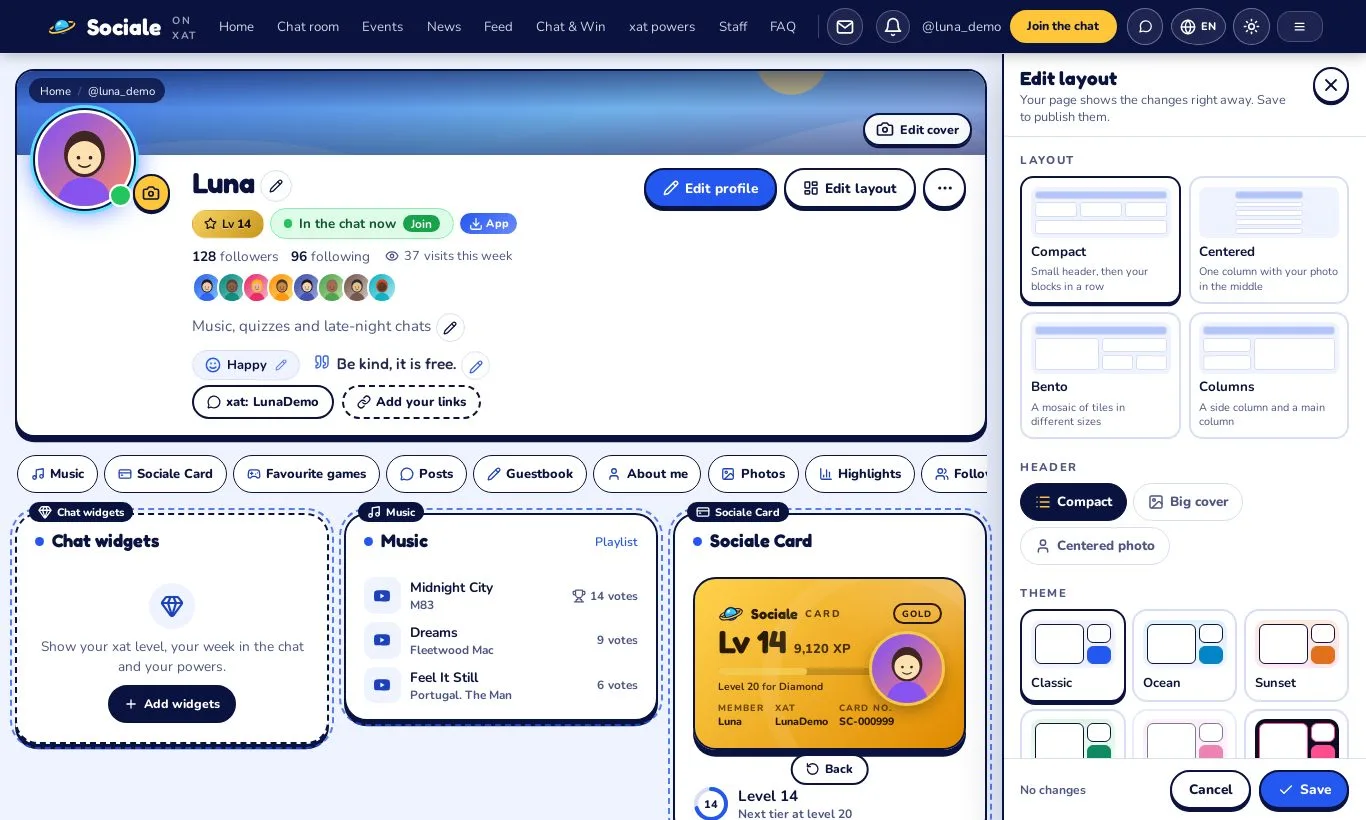
Looking for Customize page (colours, frames, widgets)? It is now in the "…" menu next to Edit layout.
Step 2: choose a layout
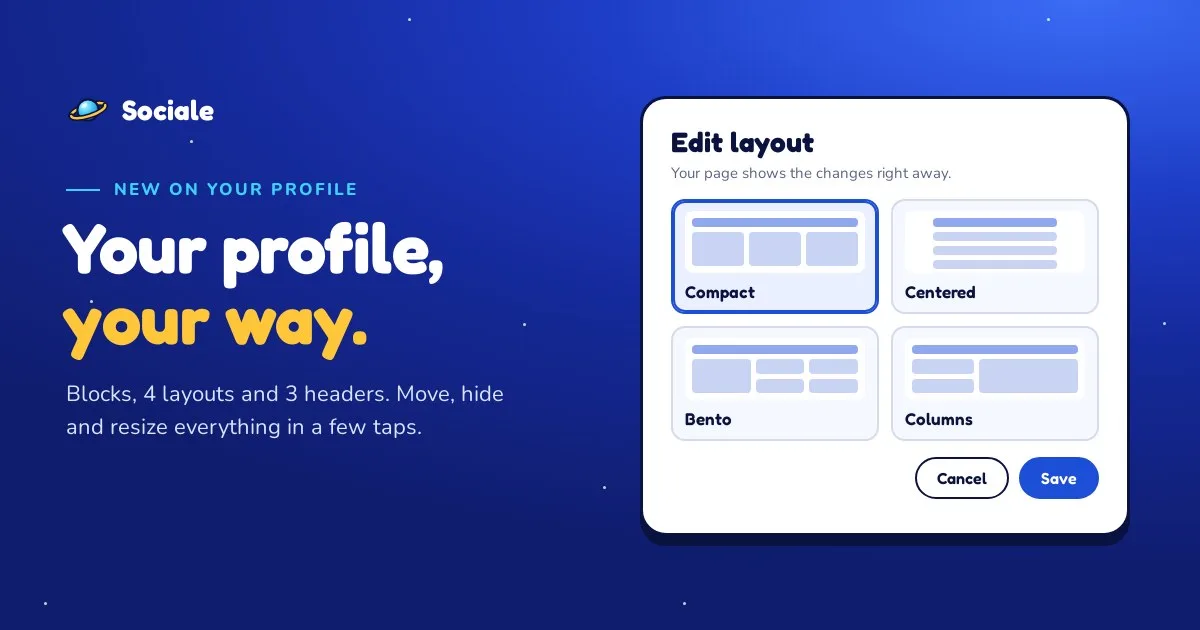
At the top of the panel you find the 4 layouts. Tap one and your page changes at once.
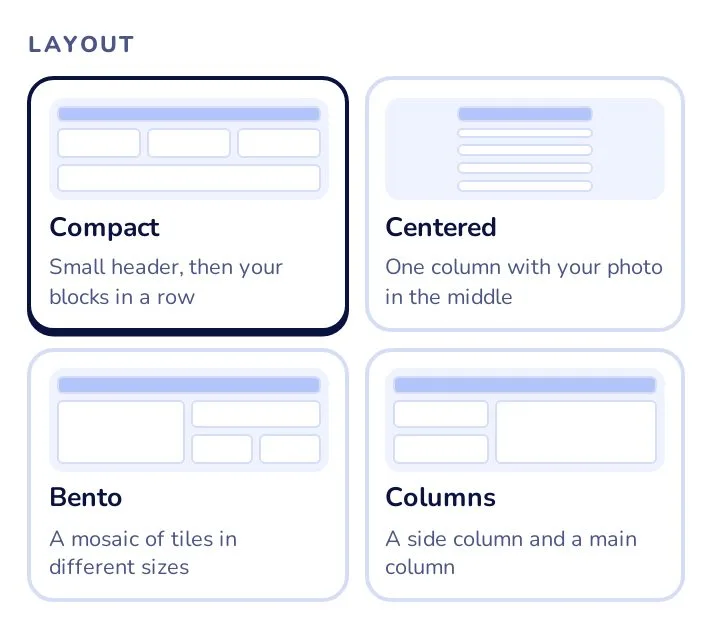
| Layout | What it looks like |
|---|---|
| Compact | Small header, then your blocks. Small blocks side by side in a row. This is the default for everyone. |
| Centered | One column, with your photo in the middle. |
| Bento | A mosaic of tiles. You choose the size of each block: Small, Medium, Large or Wide. |
| Columns | A side column and a main column. You choose where each block goes: Top, Side or Main. |
When you change layout, the blocks go back to the order and sizes we suggest for that layout. Your hidden blocks, your quick links choice and your text stay as they are.
On a phone every layout becomes one column, in the order you chose.
Step 3: choose a header
The header is the top of your page, with your photo and your name. It has 3 styles, and you can use any of them with any layout:
- Compact: a thin cover, your photo next to your name.
- Big cover: a large cover picture at the top.
- Centered photo: your photo and name in the middle.
Your theme still works with every layout. You can change it in the same panel, under Theme.
Step 4: order, hide and size your blocks
In the Blocks section you see all 16 blocks. For each one you can:
- Move it: drag it by its handle, or tap the up and down arrows. On a phone the arrows are the easiest way.
- Hide it or show it: tap the eye. Hidden blocks are not sent to visitors at all.
- Choose its size (Bento only) or its column (Columns only).
With a keyboard: press Tab to reach the handle of a block, then use the up and down arrow keys.
Under the list there is a switch: Show quick links to the blocks under the header. When it is on, visitors see a row of buttons that jump straight to each block.
Empty blocks
Visitors never see empty blocks. You do: an empty block shows a dashed border and a button to fill it, like Add photos, Add widgets or Choose friends. In the panel, empty blocks have the label Empty.
Step 5: write your own text
The Your text block is free space for you: a welcome, your rules, a little story. In the panel, under Your text, write a title (up to 60 characters) and your text (up to 2,000 characters).
You can use **bold**, *italic*, lists that start with "- " and links. HTML is not allowed.
Step 6: save, or change your mind
At the bottom of the panel you see if there is something to save (Not saved yet).
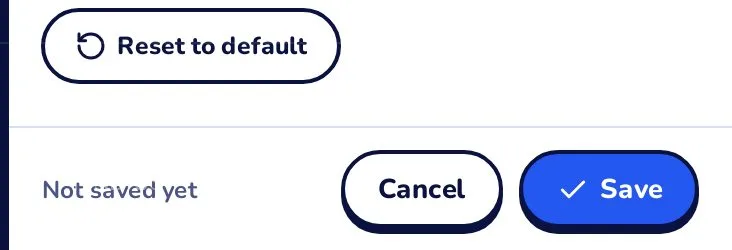
- Save: your new page is published. A message Layout saved appears with an Undo button, if you want to go back.
- Cancel (or the Esc key): closes the panel and throws away the changes. If you changed something, we ask you first.
- Reset to default: goes back to the Compact layout with the order we suggest. Your text stays. Tap Save to keep it.
When you save, people who are looking at your page see the new version right away, without reloading.
The 16 blocks
About me, Details, Posts, Photos, Followers, Best friends, Badges, Guestbook, Events, Sociale Card, Chat widgets, Music, Favourite games, Highlights, Your text and Super Powers.
Try it now: open your profile and tap Edit layout. Questions? Write to us from Help & support or ask in the Sociale chat.